
Loading...
Loading...
Loading...
Loading...
Loading...
Loading...
Loading...
Loading...
Loading...
Loading...
Loading...
Loading...
Loading...
Loading...
Loading...
Loading...
Loading...
Loading...
Loading...
Loading...
Loading...
Loading...
Loading...
Loading...
Loading...
Loading...
Loading...
Loading...
Loading...
Loading...
AirHub® Portal offers a flexible, tiered licensing structure designed to support drone operations at every stage of their journey, from individual pilots to large, complex organizations. This guide details the features available with each license type, helping you understand how AirHub® Portal can meet your specific operational needs.
We appreciate you choosing Airspace Link! Our commitment is to support your growth and evolving needs.
If you're new to AirHub Portal, request a demo to see how our drone operations management system can integrate the use or knowledge of drones into your organization.
Otherwise, access immediate guidance through our Knowledge Base.
Interested in product information or sales information?
Feature Releases
User Guides
Integrations, Setup, and Customizations
FAQs and Troubleshooting


Once an operation has been planned and approved (if required), the pilot can proceed to execute the flight. AirHub® Portal facilitates seamless flight log capture to ensure comprehensive record-keeping for every operation.
Operation Execution: The pilot conducts the drone operation as planned.
Automated Flight Log Capture: To ensure flight logs are automatically captured during execution, pilots with appropriate aircraft and controllers can install the Flight Log Sync App on the supported controllers. This app enables automated flight log syncing with your AirHub® Portal account. This feature is particularly beneficial for organizations with Team and Advanced licenses, streamlining the data collection process.
Ensuring compliance with aviation regulations and internal organizational policies is a cornerstone of safe and lawful drone operations. AirHub Portal facilitates various types of compliance:
LAANC (Low Altitude Authorization and Notification Capability) authorization from the FAA is required if your drone operation is within controlled airspace. If your operation is not within controlled airspace, this authorization is not required.
If your operation is within controlled airspace, you can submit for LAANC authorization directly through the system.
Instant Approval: For eligible operations, instant approval may be available upon submission.
Further Coordination: If your operation requires further coordination from the FAA, you can submit for that through our system. Please note that such requests require a 72-hour notice period for processing.
Additionally, when submitting for LAANC, you can toggle on the Variable Height feature. This allows you to adjust authorizations to maximum grid ceiling heights for automatic approval, while respecting those heights during operation.
AirHub® Portal supports internal approval workflows to ensure operations align with company policies and safety protocols. In order for an operator to submit an operation for approval, the designated reviewer must be assigned a user role of "Manager". Managers have access to review and approve operations. This process helps maintain enhanced safety and compliance before an operation can proceed.
(Coming Soon) AirHub Portal is actively working to integrate UTM capabilities, which will provide advanced traffic management features for complex airspace environments.

The AirHub® Portal's Operations Center, a core feature of the Advanced License, provides Managers and Directors with a "Single Pane of Glass" for comprehensive, real-time situational awareness. It enables them to monitor their organization's operator and drone activity throughout the day, ensuring safety and compliance across all operations.
From the Operations Center, Managers and Directors can:
View Operations: Gain a complete overview of all planned, ongoing, and completed operations within the organization for the current day.
Monitor Drone Traffic: Track the movements of your organization's drones and other drone traffic within the operational area, contributing to a holistic view of the airspace.
Monitor Airspace Changes: Observe dynamic changes in airspace classifications and advisories affecting operational areas.
Access Integrated Weather Data: View current and forecasted weather conditions relevant to ongoing and planned operations, aiding in real-time decision-making.
Track Crewed Aircraft (ADSB) Traffic: See real-time Automatic Dependent Surveillance–Broadcast (ADSB) data, providing visibility into nearby crewed aircraft for enhanced safety.
HexGen is the geospatial aggregation and modeling engine developed by Airspace Link. It enables the transformation of complex and distributed geospatial data into a common, unified data surface. This capability allows users to turn data into insights and insights into action.
One way to leverage the power of HexGen is with Automated Operation Risk Assessments. This digital risk assessment tool enables rapid, repeatable, and reliable risk insights for your planned operations. Use the generated surface and associated metrics to determine if your planned operation exceeds any risk thresholds for your organization, and capture metrics for waiver or COA requirements.
Prerequisites:
[For Advanced and Enterprise] A user assigned the Planner user type
How to use:
Select HexGen widget at the top left corner of the map view
This widget is visible in the operation creation form when a valid operation volume has been drawn, and in the operation details view after the operation has been created.
Click the “Select Surface Profile” button
For
Best Practices
The HexGen risk assessment is best used as part of an organization operation planning policy. The HexGen risk assessment can provide a common, repeatable method to consistently analyze operation risks based on geospatial features in the operation area. For Advanced or Enterprise users, it is best practice to create specific HexGen Surface Profiles for common operation types or categories that require unique operation risk assessment parameters. This enables all operations of that type or category to have consistent risk exposure metrics.
Upgrade today!
For more information on upgrading to the Team or Advanced bundle, !
Other HexGen Details
Basic Risk Profile: Contains the following features and associated risk scores
Prisons: 10
Schools: 10
Helipads: 10
Hospitals: 8
The Live Flight Viewer's functionality and display are controlled by specific URL parameters. These dictate what data is shown and how the map initially appears.
Base URL Structure:
https://flysafe.airspacelink.com/?mode=live-flight&apiKey={YOUR_API_KEY}&orgId={YOUR_ORG_ID}&loc={LATITUDE},{LONGITUDE},{ZOOM_LEVEL}z&programId={YOUR_PROGRAM_ID}
mode: mode=live-flight
Function: Specifies the viewer's operational mode. For the Live Flight Viewer, this will always be live-flight, ensuring real-time drone activity is displayed.
Value: live-flight
apiKey: apiKey={YOUR_API_KEY}
Function: A unique identifier for authentication, allowing access to Airspace Link services.
orgId: orgId={YOUR_ORG_ID}
Function: Your organization's unique identifier within the Airspace Link platform. This ensures the map displays data specific to the organization.
loc (Location): loc={LATITUDE},{LONGITUDE},{ZOOM_LEVEL}z
Function: Sets the initial geographic center and zoom level of the map. The z suffix for the zoom level is critical. A value of 15 (streets level) is recommended.
Example Syntax: loc=42.32718,-83.03792,13z
programId: programId={YOUR_PROGRAM_ID}
Function: Filters data relevant to a specific program. This parameter is required only if multiple organizations belong to a specific program.
To configure the custom embed URL, the following details are needed:
API Key (apiKey) and Organization ID (orgId):
Retrieval: Obtain both the unique apiKey and orgId from the Obelix team.
Map Centering Location (loc
<iframe> HTMLTo configure the <iframe> syntax for embedding, update the src URL with that constructed from the prior steps, adjust the name, height, and width as necessary.
Once Custom Tags have been configured by a user with a Manager role, users can easily apply them during operation planning and use them to filter and organize data.
Learn more about creating tags for your Organization
Create a new operation
Within the Overview section, click the blue plus button just under "Associated Tags."
Select all relevant tags from the groups that appear, and click Done.
Click Save Operation to finalize the categorization of your operation.
Once an individual accepts an invitation to join an organization in AirHub Portal, they should update their personal user profile to ensure accurate and complete information is recorded. This information is vital for compliance, tracking pilot currency, and facilitating effective communication within your organization.
How to Update Your Profile:
Navigate to your profile by clicking on your user icon or name in the top right corner of the AirHub Portal interface.
Select "Account Details" from the dropdown menu.
Key Profile Information to Update:
First Name: Your first name.
Last Name: Your last name.
Email: Your primary contact email address (typically pre-filled).
Phone Number: Your primary contact phone number.
Certificate Details:
Certificate Number: Your drone pilot certificate number.
Certificate Issue Date or Last Renewal: The date your certificate was issued or last renewed.
Certificate Renewal Date: The date your certificate is due for renewal.
Saving Changes:
After making updates, click the "Submit" button to save your changes.
Custom Tags give managers with and AirHub Portal Organization the ability to standardize categories and identifiers, ensuring consistency when tracking operational attributes across the team. This guide covers the initial configuration of Tag Groups and individual Tags for use across the platform.
Licensing: An Airhub Portal Team License or Higher is required.
Navigate to Admin on the left-hand menu to access Tags Management.
Select an existing tag group to edit and add tags, or click "+ Create Tag Group" to create a new tag group and tags.
Define the Tag Group:
Title: Enter a descriptive name for the group (e.g., Project Name or Team Name).
When building your organization's custom tag groups, consider the data points that are most critical for filtering, reporting, and operational efficiency:
Operation Purpose: Survey, Mapping, Delivery, Security-Patrol
Project: ProjectABC, Project123
Regulatory Environment: Part-107, Waiver-12345, Restricted-Airspace
Categories/Classification: Training, Emergency Response, Inspection, R&D
AirHub® Portal provides robust sorting and filtering capabilities to give you more control and a streamlined experience across your drone operations, users, flight logs, and aircraft data.
Table-Level Sorting
Intuitive table-level sorting is available in key sections of AirHub® Portal:
Work Orders
Flight Logs
Users
The AirHub® API delivers essential data and services designed to power and enrich your Unmanned Aircraft System (UAS) applications. Built on a RESTful architecture, the API features predictable, resource-oriented URLs, handles both form-encoded and JSON request bodies, and returns JSON-encoded responses. It adheres to standard HTTP response codes, authentication, and verbs for seamless integration.
Developers can explore and build with the AirHub® API in a dedicated sandbox environment, ensuring that development and testing do not impact live data or production systems.
Access the AirHub® API Developer Site: For comprehensive documentation, API references, and to get started with integration, visit .
For Advanced or Enterprise users, you may select an AirHub Profile or one of your own profiles (See Surface Profile How-to guide)
Select the desired resolution (higher resolution will generate smaller hexagons in the surface)
Click Analyze
Interact with the surface on the Map my clicking on individual hexes, or view the graphical surface risk metrics.
Railroad Lines: 5
Parks: 4
Transmission Lines: 2
Electric Substations: 2
FAA Obstacles: 2

Select Tag Color: Choose a color to visually distinguish this group in the platform.
Available For: Select which entities can utilize these tags. This is currently limited to:
Operations: For associating tags during operation planning.
Aircraft (Coming Soon): For tracking aircraft-specific attributes.
Click Save Tag Group. The group is now created and appears in the Tags list.
Add Tags to the Tag Group:
Use the Add Tag field to enter the name of an individual tag.
Click the Create New Tag button after entering the tag name.
Click Save Tag Group.
Teams: Team1, Team2, Team3


Survey123 Work Order Requests: Simplified creation and submission of drone work requests using integrated forms.
Managerial Approval Workflows: Enable manager review processes for enhanced operational safety and compliance.
Weather Score: Provides a quick, actionable assessment of current and forecasted weather conditions for flight planning.
Work Order System Integration: Facilitates efficient task assignments and broader adoption through integrated work order systems.
Esri GIS Data Integration: Seamlessly integrates with your Esri GIS data, allowing for richer mapping and analysis.
Survey123 Custom Forms: Add customizable forms to support detailed data collection for user, aircraft, operations, or flight log records.
Retrieval: Get the Latitude and Longitude for the initial map location from AirHub Portal's b4ufly widget., the coordinates are displayed with each click on the map.
Program ID (programId):
Retrieval: If applicable (i.e., if multiple organizations belong to a program), the Obelix team will create the specificprogramId.
<iframe src="https://flysafe.airspacelink.com/?mode=live-flight&apiKey=???&orgId=org_???&loc=42.32718%2C-83.03792%2C15z&programId=???"
style="border:0px #ffffff none;" name="Live Flight Viewer" scrolling="no"
frameborder="1" marginheight="0px" marginwidth="0px" height=600px width="1000px"
allowfullscreen></iframe>
Aircraft
To arrange data in ascending or descending order, simply click the sort icon next to applicable table headers.
Filtering capabilities are extensive, allowing you to dive deeper into your data. Many of these filters support multi-selection for highly targeted results.
Keyword Search: Dynamically filter operations by specific keywords to quickly locate relevant operation.
Tags: Filter by Tags (Note: Tags selected within a group will expand the result, whereas tags selected across groups will narrow the result)
Pilot in Command: Filter by one or more assigned RPICs.
Aircraft: Filter by one or more specific aircraft.
Date & Time Range: Filter by a time and date range.
Date & Time Range: Filter by a time and date range.
Remote Pilot in Command (RPIC): Filter by specific pilot(s).
Crew: Filter by individual crew member(s).
Aircraft: Filter by aircraft(s).
Incident Occurred: Filter by flights with a recorded incident.
Certificate Renewal Date: Filter by certification status
User Type: Filter users by role
Remote ID Registered: Filter by registration status
Status: Filter by current operational status
Owner: Filter by aircraft owner(s).
This guide will walk you through installing the AirHub Sync App for DJI on your compatible Android-based DJI controller to enable automatic flight log syncing with your AirHub Portal account.
Compatibility
Supported AirHub Portal Organizations: Your Organization must have a ‘Team’ or “Advanced’ license.
Supported Controllers: DJI RC Pro controllers running DJI Pilot 2 app.
Supported DJI Ground Control Station (GCS) Apps: DJI GO/GO 4 and DJI Pilot/Pilot 2.
Unsupported: iOS devices and the DJI Fly GCS application.
Step 1: Download the AirHub Sync App APK
(Before you begin, ensure your DJI controller has an active internet connection (Wi-Fi or cellular data)).
The AirHub Sync App is provided as an Android Package Kit (APK) file for direct installation on DJI enterprise controllers.
On your DJI controller's web browser, navigate to the following URL to download the APK file: https://tinyurl.com/airhubsync
The download should begin automatically. Once complete, you may see a notification in your device's notification bar.
Step 2: Enable Installation from Unknown Sources
For security reasons, Android devices (including DJI controllers which run a custom version of Android) typically block installations from sources other than official app stores. You will need to temporarily enable this setting.
Go to your DJI controller's Settings menu.
Look for options like Security, Apps & notifications, or Privacy.
Find a setting related to Install unknown apps or Unknown sources.
Step 3: Locate and Install the APK
Open the File Manager or Downloads app on your DJI controller.
Navigate to the folder where you downloaded the APK file
Locate the AirHub Sync App APK file (e.g., airhub-sync-v0.0.4.APK).
Tap on the APK file to begin the installation process.
Step 4: Login to AirHub Portal
After the initial app setup and permissions are granted, you will be directed to the login process.
The app will present a login screen.
Enter your Email Address associated with your existing AirHub Portal organizational account.
Tap Continue.
Next, enter your password for your AirHub Portal account.
Step 5: First-Time App Launch and Permissions Setup
Upon first launch, the AirHub Sync App will guide you through necessary permissions and folder selection.
After logging in, the app will request Required Permissions. These are essential for the app to access flight logs. Tap Allow or the appropriate option to grant permissions.
Step 6: Syncing Your Flight Logs
Once you have successfully logged into the AirHub Sync App, the app is configured to handle your flight log syncing. There are two primary methods: manual syncing and automatic background syncing.
Manual Syncing:
To manually sync, click the icon next to the flight log in the list (the cloud with an arrow).
Automatic Background Syncing:
The AirHub Sync App supports seamless automation, operating in the background to simplify your workflow.
To activate automatic background syncing, navigate to “Settings” and toggle on automatic file sync. Now, once a flight concludes, the app intelligently detects the newly generated DJI flight record file on your device. It then securely and automatically transmits this file to your AirHub Portal account without requiring any further manual intervention.
Step 7: Confirm Flight Log Syncing
Once files are synced (either manually or automatically), flight logs are created in your AirHub Portal account. Navigate to to confirm files are syncing properly.
Note: The exact path and wording for this setting may vary slightly depending on the specific DJI controller model and its Android version, but the principle of allowing installation from non-app-store sources is universal.
A prompt will appear asking for permissions the app requires. Review these permissions and then tap Install.
You might encounter a warning about the risks of installing apps from unknown sources. If presented, accept the risk to proceed with the installation.
Once the installation is complete, you will see an "App installed" message. You can tap Done or Open.
Tap Confirm or Login.
If your account is associated with multiple organizations in AirHub Portal, you will be prompted to Choose an Organization to Continue. Select the relevant organization.


Select Settings
Enable "GPS & Telemetry"
Select Settings
Under the "Developer" section select "Webhooks"
In the top right corner, select "Create Webhook"
Name the Webhook "AirHub Portal"
Paste the Webhook URL provided by your customer success representative.
Live Flight Alert:
Select Settings
Under the "Settings" section select "Alerts"
In the top right corner select "Add Alert"
Enter the following:
Alert Name: AirHub Portal Live Flight Data
Receive notification for the following event: "Flight status changed"
Apply this alert to the following vehicles or docks: Select individual desired vehicles, or select "Apply to entire organization"
Toggle the "Webhook" action and select the previously created "AirHub Portal" webhook
Post-Flight Sync Alert:
Select Settings
Under the "Settings" section select "Alerts"
In the top right corner select "Add Alert"
Enter the following:
Alert Name: AirHub Portal Post-Flight Sync
Receive notification for the following event: "Flight telemetry available"
Apply this alert to the following vehicles or docks: Select individual desired vehicles, or select "Apply to entire organization"
Toggle the "Webhook" action and select the previously created "AirHub Portal" webhook
Select the "Integrations" tab in the main navigation
Select "+ Add Custom Integration"
Under "Token Name" enter "AirHub Portal"
Select the desired group(s) this integration is intended for. If you would like all aircraft to be included, select "(Entire Organization)"
Enable the following Permissions:
Flight Telemetry: Read-Only
Flights: Read-Only
Live Stream: Read-Only
Live Telemetry:
Copy the API Token Secret and provide it to your AirHub Portal customer success representative
Stand by, and once you are notified your account is configured, all new flight activity will be logged, and your live aircraft position will be visible in the Operations Center.
Customizing your AirHub Portal Map with ArcGIS Online
Effective data visualization is crucial for informed decision-making. AirHub® Portal’s ArcGIS Online web map integration empowers organizations to tailor their AirHub Portal map to satisfy their organization’s unique data needs. Integrating your organization's unique data alongside AirHub® Portal’s regulatory and risk-focused data gives you a comprehensive and unified view of your airspace, ground risks, and operational activities, enabling informed decisions, optimized operations, and enhanced safety and compliance.
Our web map integration empowers you to retain complete control over your data. Creating a custom web map within your ArcGIS Online organization and adding your organization’s public or private data, ensures that your information remains secure. Once you've created your web map, simply share its link with Airspace Link. We'll register it with your AirHub® Portal organization, making your data instantly accessible to your users without compromising your data's integrity.
NOTE: Integrating your custom web map into AirHub Portal does not replace the existing AirHub Portal map. Instead, it adds new layers of data to your map, enhancing your overall situational awareness.
An ArcGIS Online organizational account
Basic understanding of ArcGIS Online and web maps
Create a Web Map in ArcGIS Online (Optional)
Note: If you don't already have a web map that contains your organization's data, follow these steps to create one in ArcGIS Online:
Log in: Sign in to your ArcGIS Online organizational account with a user type
Create a New Map: Navigate to the Map tab
Add Your Data:
Feature Layers:
NOTE: Public map sharing is preferred as it’s the easiest to configure within AirHub Portal. If you have sensitive data that cannot be shared publicly, Airspace Link can assist your organization with configuring advanced authentication, which reduces the frequency of ArcGIS Online login prompts your users will receive.
Integrate the Web Map into AirHub Portal
Obtain the Sharing URL: With your ArcGIS Online map open, copy the web map URL from the browser.
Configure AirHub Portal with the Custom Web Map: Send the Web Map URL to [email protected] along with the name of your AirHub Portal Organization. The configuration is typically completed within 24 hours.
Support for Secured Services (Optional)
If your web map is secure or it contains secured services, you may encounter a login prompt when accessing it in AirHub Portal. Consider creating an OAuth2.0 authentication application within your ArcGIS Online instance. Send the Client ID to [email protected] and we’ll configure a long-standing token for your AirHub Portal organization, minimizing the number of ArcGIS online login prompts for your users.
All data added to your web map will be overlaid on the AirHub Portal web map for all your organization’s Portal users. If you wish to update your map at any time, simply access the web map through ArcGIS online, make modifications, and save the map. When you refresh AirHub Portal next, your changes will be reflected.
Configuring ArcGIS Survey123 Integration for Custom Data Collection
This guide outlines the steps for integrating Esri Survey123 custom forms with AirHub® Portal to enhance data collection for various data entities, including Operations, Users, Aircraft, and Flight Logs. Integrating Survey123 with AirHub® Portal empowers users to customize data collection for their specific needs, streamlining workflows, enhancing data quality, and providing deeper operational insights.
Note: This guide focuses on integrating Survey123 for custom data gathering slots, which is distinct from the Survey123 Work Order Requests functionality.
An ArcGIS Online account with Survey123 capabilities
The integration process involves creating your Survey123 form and then coordinating with AirSpace Link support for its configuration within AirHub® Portal.
Decide Form Location: Determine where your Survey123 form will be embedded within AirHub® Portal in terms of workflow:
Supplemental Operation Creation Information (Plan Tab): Ideal for capturing pre-flight information (e.g., weather conditions, pilot certifications, equipment checks) when creating a new operation.
Supplemental Flight Log Information (Manage Tab): Suitable for capturing post-flight information related to flight logs (e.g., anomalies encountered, maintenance requirements).
AirSpace Link will then configure your Survey123 form within AirHub® Portal, typically completing this process within 24 hours.
Please note: While AirSpace Link support can assist with initial configuration, ongoing management of your Survey123 forms remains your responsibility.
Introducing Flight Record Upload and Flight Log Linking in AirHub® Portal
This functionality empowers users with organization accounts to easily upload drone telemetry data and link it to their flight logs, capturing true flight activity, and providing precise and accurate data for compliance, asset monitoring, and pilot currency.
Supported Platforms
AirHub® Portal supports importing flight record data from various platforms, making it easy to integrate with your existing systems: DJI Flight Records: [“.txt”]
Pixhawk Aircraft: [“.bin”]
This guide outlines the process for integrating Survey123, an external data collection tool, with the AirHub® Portal. The goal is to enable a seamless two-way flow of work order data: allowing work orders to be created in the Portal from Survey123 and reflecting Portal status updates back into the original Survey123 feature layer.
ServiceNow Work Order Integration
Establish a seamless, two-way sync to create work orders from ServiceNow and update their status and deliverables back to AirHub Portal.
➕ Requires an active ServiceNow subscription and custom API endpoint setup.
🔒 AirHub Portal License: Advanced
Survey123 Work Requests
Initiate new drone work orders directly in AirHub Portal by submitting a configured Survey123 form.
➕ Requires an ArcGIS Online organizational account with Survey123 access.
🔒 AirHub Portal License: Advanced
HexGen Risk Assessments
Automated, repeatable risk insights for planned operations using the built-in HexGen geospatial modeling engine.
🔒 AirHub Portal License: Advanced
Skydio Cloud Integration
Skydio Cloud to automatically sync flight data and display live telemetry from your Skydio fleet.
➕ Requires a Skydio Cloud account and custom webhook/API key setup.
🔒 AirHub Portal License: Team or Advanced
DJI Flight Log Syncing
Sync flight logs and telemetric data automatically using the custom AirHub Sync App installed on your DJI controller.
➕ Requires installation of the AirHub Sync APK on a supported DJI controller.
🔒 AirHub Portal License: Team or Advanced
Flight Record Upload
Manually upload flight log files (e.g., CSV, TXT, KML, or Bin files) for quick record processing.
🔒 AirHub Portal License: Team or Advanced


Users: Read-Only
Vehicles: Read-Only
Webhooks: Read-Only


Sketch Layer: A sketch layer allows users without any GIS experience to quickly add markup and annotation to the map.
Tile Layers: Tile layers are pre-rendered images, typically displaying high-resolution drone or satellite imagery.
Style and Symbolize:
Customize the appearance of your layers using symbols, colors, and labels.
Set appropriate visibility ranges.
Save and Share:
Save your map with a descriptive name. This name will be visible within the Map Styles and Layers tool within AirHub Portal.
Share the map with the appropriate permissions. You can share it with specific groups within your organization or make it public.


Supplemental Information for Users (Manage Tab): This location can be used for gathering additional data related to user profiles.
Supplemental Information for Aircraft (Manage Tab): This location can be used for gathering additional data related to aircraft.
Login to Survey123: Access Survey123 at https://survey123.arcgis.com/ and log in with your ArcGIS Online credentials.
Create a New Survey: Click the "Create a new survey" button on the landing page. You will have two options:
Using the web designer (Recommended): This user-friendly interface allows for visual drag-and-drop form building and is recommended for most users.
Using a survey template: Choose from pre-built templates for common scenarios and customize them. You can find the "UAS Pre-Flight Checklist" template under the "Community" tab, or access it directly at https://survey123.arcgis.com/surveys/templates/3fe63637f4ac41a88f8ba685f0e2a242 if you wish to use AirSpace Link's pre-flight checklist.
(Advanced) You can also use Survey123 Connect to create complex forms with advanced features like repeating sections and custom calculations.
Design Your Survey:
If using the web designer, you will see a blank canvas. Use the right-hand panel to explore and drag and drop desired question types onto your canvas. Available question types include single-line text, multi-line text, number, date, time, date and time, email, website, single select, multiple select, Likert scale, ranking, map, address, image, file upload, audio, and signature.
Configure each question by editing its text, answer choices, and any additional settings like required answers or default values.
Organize your questions logically for a clear user experience.
Add the Required "entityId" Field: To properly associate your Survey123 form with a specific record (entity) in AirHub® Portal (e.g., an operation, user, aircraft, or flight log), you must include a field named entityId (camel case). This field serves as the unique link between your survey data and the AirHub® Portal entity.
This entityId field should be a Singleline Text type.
This ID field can be configured as hidden within your Survey123 form if you prefer, ensuring a cleaner user interface while maintaining the crucial link.
(Optional) Adjust Appearance to Match AirHub® Portal: For visual consistency, you can adjust your Survey123 form's background color to HEX 18181B and text color to HEX FFFFFF.
Preview and Test: Click the "Preview" button to see how your form will appear to users on various devices. Test your form by completing it yourself to ensure everything functions as intended.
Publish Your Survey: Once satisfied with your form, click the "Publish" button to publish it publicly.
Configure Feature Service Editing Settings (Critical for Updates within AirHub® Portal): For seamless editing of submitted data within the AirHub® Portal (allowing previously submitted data to be recalled and updated when revisiting a form associated with a Portal entity), the associated Feature Service in ArcGIS Online must have specific editing capabilities configured.
Access: In ArcGIS Online, navigate to the "Content" section, find the Feature Layer Form View associated with your Survey123 form. Click on its item details page, then go to the "Settings" tab.
Apply the following settings: Editing Section: Under the "Editing" section, apply the following settings:
Obtain Necessary URLs and IDs: After publishing your survey, you will need to gather the following:
Survey123 Sharing URL (includes surveyid): Open the published form and copy its URL. It will look like https://survey123.arcgis.com/share/your-survey-id. The your-survey-id part is the surveyid.
Survey123 Feature Service URL (serviceURL): In ArcGIS Online, navigate to the "Content" section. Find the Feature Layer (hosted) associated with your Survey123 form (it will have the same name as your survey). Click on its item details page, and then copy the "URL" under the "Details" tab. This is your serviceURL.
ArcGIS Online Client ID (clientId): You will need to register an application in your ArcGIS Online organization to obtain a clientId. For detailed instructions on how to find or generate this, please refer to the official ArcGIS Online documentation on "Register an application" or "Authentication in ArcGIS Online."
Send Configuration Request to AirSpace Link: Once your Survey123 form is published and you have obtained the required URLs and IDs, send an email to [email protected]. In your email, include the following information:
The Survey123 Sharing URL (which contains the surveyid).
The Survey123 Feature Service URL (serviceURL).
The ArcGIS Online Client ID (clientId).
The Form location (Operations, Users, Aircraft, or Flight Logs)
The name of your AirHub® Portal Organization.

Other generic file types: [“.csv” and “.kml”]
How to Use
Suggestion on how to summarize the above below.
Using the flight record upload feature is straightforward:
Select or Create a Flight Log: Start by choosing an existing flight log or creating a new one in AirHub Portal.
Upload Your Flight Record: Upload your telemetry file directly to the selected flight log.
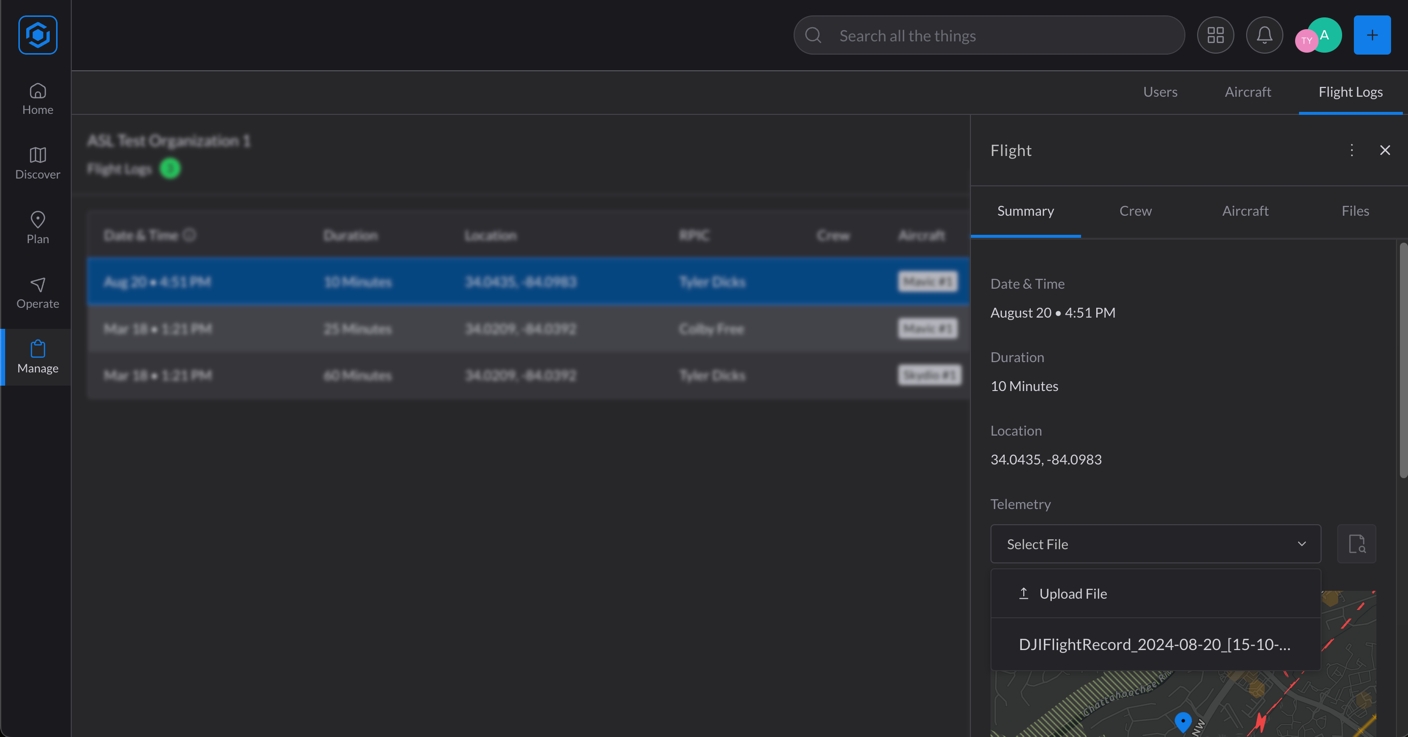
Link the Data: In the Summary tab, find the Telemetry section, select your uploaded file, and click the button to parse and link the telemetry data.
Once completed, your flight path and other key metrics will be automatically updated in your flight log.
How to Download Telemetry Files from Your Aircraft, Controller, or Ground Control System.
For DJI Aircraft
You can obtain telemetry files directly from the aircraft controller or through the DJI app:
Method 1: Downloading from the DJI App (DJI GO 4 or DJI Fly)
iOS device & Mac computer:
Connect phone to computer: You may need to have your phone “trust” the computer
In Finder, select the device: The phone should show up as a drive under “Locations”
Select “Files,” expand the DJI GO 4 or Fly folder, and click on “FlightRecords.”: This folder contains the DJI flight record files
Copy the FlightRecords folder to your desktop: Click and drag the “FlightRecords” folder from the finder window onto your desktop to create a copy of the FlightRecords folder on your computer.
Find the FlightRecord file associated with the desired Flight Log in AirHub® Portal. This file will be uploaded and parsed in the Flight Log.
iOS device & Windows computer:
Open iTunes and Connect phone to computer: You may need to have your phone “trust” the computer
Select device view: Click the phone icon to access file sharing
Download a copy of the DJI FlightRecords folder: Select “File Sharing,” select the correct DJI app, select the “FlightRecords” folder, scroll to the bottom of the screen, and select the “Save…” button to save a copy of the folder on your computer.
Find the FlightRecord file associated with the desired Flight Log in the AirHub Portal. This file will be uploaded and parsed in the Flight Log.
Android device
Connect phone to computer: You may need to have your phone “trust” the computer
For Mac computers, you may need to install an Android file transfer utility program.
Find the DJI app file folder for the desired DJI app. The specific path may depend on your device, app version, and desired DJI app. An example folder path would be: “…/internal storage/DJI/dji.go.v4/”
Copy the FlightRecords folder to your desktop: Copy the “FlightRecords” folder from the finder window onto your desktop to create a copy of the FlightRecords folder on your computer.
Find the FlightRecord file associated with the desired Flight Log in the AirHub Portal. This file will be uploaded and parsed in the AirHub Flight Log.
Method 2: Downloading from the DJI Controller (Smart Controller, RC Pro, CrystalSky)
Connect the Controller to Your Computer: Use a USB cable to connect your DJI controller to your computer. Ensure device-specific file transfer is enabled.
Access the Internal Storage: Once connected, the controller’s internal storage should appear on your computer as an external drive.
Navigate to the FlightRecord Folder: Open the drive and navigate to the folder where the telemetry files are stored. This is usually under the DJI/dji.go.v4/FlightRecord directory (for DJI Go devices) or DJI/com.dji.industry.pilot (for DJI Pilot devices).
Copy the Files: Select the telemetry files you need and copy them to your computer's local storage. Then, upload them and parse them in the AirHub Flight Log.
For Pixhawk Aircraft
Access telemetry files from your Pixhawk flight controller in the following ways.
Method 1: SD Card (For flight controllers with removable SD card)
Remove SD Card from flight controller: Connect to computer
Download binary (.bin) log file: Log files located at /APM/LOGS
Method 2: Mission Planner
Connect vehicle to Mission Planner: Can connect via USB or radio
Access DataFlash Logs: Select “FLIGHT DATA” and beneath the primary flight display, select “DataFlagh Logs” and “Download DataFlash Log via Mavlink”
Select and download selected logs: Select desired log(s) for associated Portal flight logs
Method 3: QGroundControl
Connect vehicle to QGC: Can connect via USB or radio
Access DataFlash Logs: Select the main menu (“Q” icon in the top left), “Analyze Tools”, and will load “Log Download”, and may need to press “Refresh”
Select and download selected logs: Select desired log(s) for associated Portal flight logs
For Other File Types:
CSV File
Ensure the first record in the CSV file contains the field names, two of which must be “latitude” and “longitude”.
KML/KMZ File
Ensure the path flown is represented using the “LineString” data type.
The integration involves a two-way communication setup:
Inbound Flow (Survey123 to AirHub® Portal - Work Order Creation):
A user submits a Survey123 form.
This triggers an event (e.g., a webhook associated with the Survey123 form submission) to send data.
A Power Automate Flow (Inbound) receives this data, transforms the Survey123 format into Airspace Link's standard work order schema.
The Power Automate flow calls the Airspace Link API to create a new work order in the AirHub® Portal.
The work order appears in the AirHub® Portal, mapped to the correct organization.
Outbound Flow (AirHub® Portal to Survey123 - Status Updates):
An update is made to a work order within the AirHub® Portal (e.g., status).
This triggers an internal AirHub® Portal process that calls a Power Automate Flow (Outbound).
This Power Automate Flow transforms Airspace Link's update schema into Survey123's expected format.
Before configuring the integration, essential information and access are required from the customer:
Familiarize yourself with how they intend to use Survey123 for work order intake.
Understand the design of their proposed Survey123 form and the fields they plan to use.
Customer's Survey123 Form URL: The URL of the specific Survey123 form that will be used for work order creation.
Customer's ArcGIS Online Credentials (Optional): If Airspace Link will be setting up the Power Automate flows on their behalf, these credentials may be needed (decision pending on who creates/manages the PAFs).
Schema & Field Mapping:
Ideal Scenario: The customer uses a Survey123 form based on a schema template provided by Airspace Link. This simplifies the field mapping in Power Automate significantly.
Customization: If they customize their fields, field mapping details (exact field names and their expected values) will be required to ensure correct translation to Airspace Link's schema.
Location Data Handling: Survey123 can typically collect geometry directly. Confirm how they are collecting location data (e.g., point, polygon) and ensure it aligns with Airspace Link's API requirements.
This section covers the configuration steps on the Airspace Link side.
Draft Inbound Power Automate Flow: Create a Power Automate flow designed to trigger upon a Survey123 form submission and receive its data. This flow will generate a unique URL (if triggered by HTTP request).
Draft Outbound Power Automate Flow: Create a Power Automate flow designed to receive updates from the Airspace Link Portal and publish them back to the Survey123 feature layer.
Obtain Outbound URL (If applicable): If the Survey123 form isn't directly triggering the Power Automate flow, but rather a webhook that then calls an HTTP request, note the unique HTTP request URL generated by Power Automate. This will be used in Airspace Link's org.json configuration.
Navigate to the org.json configuration file in the Airspace Link GitHub repository (specific location to be provided by engineering).
For each environment (e.g., Development, Staging, Production), add a new entry for the customer's organization.
Required Data for Each Organization Entry:
uniqueId: A unique, randomly generated ID (can be generated by Airspace Link).
org_name: The exact organization name as defined in Auth0.
org_id: The unique organization identifier from Auth0.
outbound_url: The HTTP request URL generated from the inbound Power Automate flow (see Section 4.1).
Objective: The customer creates their Survey123 form to collect work order requests.
Action: The customer will design and publish their Survey123 form.
Best Practice: Encourage the customer to use a provided Airspace Link schema template to simplify subsequent field mapping.
Ensure the form collects necessary fields like title, description, and location (geometry if possible).
Objective: To receive Survey123 data and create a work order in AirHub® Portal.
Action: Configure the Power Automate flow:
Trigger: Set to "When a new survey response is submitted" (or "When an HTTP request is received" if using webhooks).
Field Definition: Define the expected fields from the Survey123 response.
Data Mapping: Implement logic to transform Survey123 fields into Airspace Link's standardized work order schema. This is typically straightforward if a template schema is used.
API Call: Add an action to make an HTTP POST request to the Airspace Link API to create the work order.
Objective: To receive work order updates from AirHub® Portal and apply them back to the original Survey123 record.
Action: Configure the Power Automate flow:
Trigger: Set to "When an HTTP request is received" (from AirHub® Portal).
Action: Use the "Update a Record in a Feature Layer" functionality.
Target: Identify the specific Survey123 feature layer and the record to update (e.g., using a unique ID passed from AirHub® Portal).
Field Mapping: Map Airspace Link update fields (e.g., status) to the corresponding fields in the Survey123 feature layer. Some status value mapping may be required.
Thorough testing is crucial to ensure the two-way integration works as expected.
Test Inbound Flow: Submit a Survey123 form and verify the new work order appears correctly in the AirHub® Portal with all mapped fields.
Test Outbound Flow: Update a work order's status (or other allowed fields) in the AirHub® Portal and verify these changes are reflected accurately in the original Survey123 record's feature layer.
Edge Cases: Test various scenarios, including different field values and potential error conditions.
Power Automate Flow Ownership: A clear decision is needed on whether customers manage their own Power Automate flows (requiring detailed instructions from Airspace Link) or if Airspace Link creates/manages them using customer ArcGIS Online credentials.
Survey123 Form Customization: While customization is supported, a standardized schema (e.g., via a template provided by Airspace Link) will significantly reduce integration complexity.
Documentation: Capture detailed documentation as you go for each integration, particularly for unique customer configurations, to build repeatable processes.
Frequently Asked Questions and Troubleshooting
The Power Automate flow uses the "Update a Record in a Feature Layer" functionality to publish the update back to the original Survey123 record's feature layer.
The original Survey123 record is updated.


B4UFLY displays controlled and uncontrolled airspace, maximum authorized altitudes near airports, restricted or prohibited airspace and other important safety information.
Coming December 2025
Coming December 2025
Coming December 2025
Released November 2025
Released November 2025
Released November 2025
Released October 2025
Released October 2025
Released September 2025
Released September 2025
Released September 2025
Released September 2025
Released September 2025
Released September 2025
Released August 2025
Released August 2025
Released August 2025
Released August 2025
Released July 2025
Released June 2025
Released June 2025
Released May 2025
Released February 2025
Released January 2025
Released December 2024
Released November 2024
Released November 2024


This guide outlines the process for integrating ServiceNow, an external work order management system, with the AirHub® Portal. The goal is to establish a seamless two-way flow of work order data: creating work orders in the Portal from ServiceNow and reflecting Portal status updates back into ServiceNow.
The integration involves a two-way communication setup:
Inbound Flow (ServiceNow to AirHub® Portal - Work Order Creation):
A record is created or updated in ServiceNow.
This triggers a ServiceNow Business Rule to send an HTTP request containing work order data.
A Power Automate Flow (Inbound) receives this request, transforms the ServiceNow data format into Airspace Link's standard work order schema.
The Power Automate flow calls the Airspace Link API to create or update the work order in the AirHub® Portal.
The work order appears in the AirHub® Portal, mapped to the correct organization.
Outbound Flow (AirHub® Portal to ServiceNow - Status Updates):
An update is made to a work order within the AirHub® Portal (e.g., status, notes, deliverable URL).
This triggers an internal AirHub® Portal process that calls a Power Automate Flow (Outbound).
This Power Automate Flow transforms Airspace Link's update schema into ServiceNow's expected format.
Before configuring the integration, essential information and access are required from the customer:
Familiarize yourself with their specific ServiceNow instance and how they use it for work orders.
Understand their existing intake forms and the fields they use.
ServiceNow Instance URL: The base URL of their ServiceNow instance.
User Credentials: A dedicated user account within their ServiceNow instance for integration purposes.
Required Permissions: This user needs permissions to:
Create Business Rules.
Create Scripted REST APIs.
Update tables
Field Mapping Details: For ALL fields in their intake form that need to be integrated with AirHub® Portal:
Exact field names (as they appear in ServiceNow).
All possible values for each field, including their underlying numeric or exact database values (not just the displayed text labels).
Custom Field Behavior: Identify any custom fields that behave unusually (e.g., work_notes field requires specific update methods via PATCH rather than direct assignment).
Location Data: Understand how they currently define operation locations (e.g., text addresses, no geometry).
Draft Inbound Power Automate Flow: Create a Power Automate flow designed to receive HTTP requests from the customer's ServiceNow Business Rule. This flow will generate a unique URL.
Draft Outbound Power Automate Flow: Create a Power Automate flow designed to receive updates from the Airspace Link Portal and publish them back to ServiceNow.
Obtain Outbound URL: For the outbound flow (Airspace Link to ServiceNow), note the unique HTTP request URL generated by Power Automate. This will be used in Airspace Link's org.json configuration.
Navigate to the org.json configuration file in the Airspace Link GitHub repository (specific location to be provided by engineering).
For each environment (e.g., Development, Staging, Production), add a new entry for the customer's organization.
Required Data for Each Organization Entry:
uniqueId: A unique, randomly generated ID (can be generated by Airspace Link).
org_name: The exact organization name as defined in Auth0.
org_id: The unique organization identifier from Auth0.
outbound_url: The HTTP request URL generated from the outbound Power Automate flow (see Section 4.1).
Objective: To trigger a send of ServiceNow work order data to Airspace Link's inbound Power Automate flow.
Action: Configure a new Business Rule within ServiceNow.
Table: Tie this rule to the specific ServiceNow table where work orders are managed.
Ensure the Active and Advanced fields are both checked
Conditions: Set conditions for when the rule fires (e.g., on insert, update, or delete of a record).
Script: In the Advanced tab, implement a custom script within the Business Rule to:
Extract relevant fields from the ServiceNow record.
Construct an HTTP POST request.
Send this request to the unique URL of the inbound Power Automate flow
Objective: To receive ServiceNow data, transform it, and send it to the Airspace Link API.
Action: Configure the Power Automate flow:
Trigger: Set to "When an HTTP request is received".
Field Definition: Define the expected fields from the ServiceNow request.
Data Mapping: Implement logic to transform ServiceNow's field names and values into Airspace Link's standardized work order schema (e.g., mapping state from "-5" to "Pending").
API Call: Add an action to make an HTTP POST or PUT request to the Airspace Link API to create or update the work order.
ASL API URL: https://airhub-api-dev.airspacelink.com/v1/workorder/webhook/{uuid} where uuid is the unique organization id contained in the
Objective: To receive work order updates from AirHub® Portal and apply them to ServiceNow records.
Action: Create a Scripted REST API in ServiceNow.
Endpoint: Define a unique, external endpoint that can accept calls from outside ServiceNow.
Method: Configure the method (e.g., PATCH for updates).
Resource path: Note the resource path generated. This will be used by the outbound Power Automate flow to publish updates to ServiceNow.
Script: Implement a script within this API to:
Receive the update request from the outbound Power Automate flow.
Identify the specific ServiceNow record to update (e.g., using a unique ID passed in the request).
Update the relevant fields (e.g., status, notes, deliverable URL) in that record.
Thorough testing is crucial to ensure the two-way integration works as expected.
Test Inbound Flow: Create/update a work order in ServiceNow and verify it appears correctly in the AirHub® Portal with all mapped fields.
Test Outbound Flow: Update a work order's status, notes, or deliverable URL in the AirHub® Portal and verify these changes are reflected accurately in the original ServiceNow record.
Field Mapping Complexity: Be prepared for detailed conversations with customers about their field definitions and values, especially for custom fields that may require specific handling.
Power Automate Flow Ownership: A clear decision is needed on whether the customer or Airspace Link will own and manage these Power Automate flows. This impacts necessary access and instruction levels.
Documentation: Capture detailed documentation as you go for each integration, particularly for unique customer configurations, to build repeatable processes.
Now that profiles are updated and users belong to the organization, managers should proceed to build out the aircraft inventory. This ensures all operational assets are properly tracked and managed.
How to Add Aircraft:
Navigate to the 'Manage' Tab, then to the Aircraft' section, found under 'Resources'.
Click the '+ Add Aircraft' button.
The Power Automate flow publishes the update to a designated ServiceNow Scripted REST API endpoint.
The original work order record in ServiceNow is updated.
Note: This often requires experimentation (sending API requests and observing transformations) or direct access to their database schema views within ServiceNow.
Handle any custom field behaviors as identified in Section 3.2.
// Example script

(function executeRule(current, previous /*null when async*/) {
    var restMessage = new sn_ws.RESTMessageV2();
    restMessage.setEndpoint('https://prod-72.westus.logic.azure.com:443/workflows/uniquePowerAutomateUrlAbc123');
    restMessage.setHttpMethod('POST');

    // Send the current work order as JSON
    var requestBody = {
        taskNumber: current.number.toString(),
        priority: current.priority.toString(),
        state: current.state.toString(),
        shortDescription: current.short_description.toString(),
        description: current.description.toString(),
        sys_id: current.sys_id.toString(),
		dueDate: current.due_date.toString(),
        link: current.getLink(),
		location: current.location.toString(),
		locationDescription: current.u_location_description.toString()
    };

    restMessage.setRequestBody(JSON.stringify(requestBody));
	restMessage.setRequestHeader('Content-Type', 'application/json');
    var response = restMessage.execute();
})(current, previous);(function process(/*RESTAPIRequest*/ request, /*RESTAPIResponse*/ response) {
// Extract the data from the request body
var requestBody = request.body.data;
// Extract the unique identifier of the record to update from the request body
var idNumber = requestBody.id;
// Create a new GlideRecord object for the 'sc_task' table
var gr = new GlideRecord('sc_task');
// Attempt to retrieve the record with the specified 'number' (idNumber)
if (gr.get('number', idNumber)) {
// Iterate over each field in the request body
for (var field in requestBody) {
// Check if the field is a direct property of requestBody
if (requestBody.hasOwnProperty(field)) {
// Set the value of the field in the GlideRecord object
gr.setValue(field, requestBody[field]);
// Handle special/unique fields separately
if (field == 'work_notes') {
// Set the 'work_notes' field specifically
gr['work_notes'] = requestBody[field];
}
}
}
// Disable workflow processing for this update to prevent it from firing other triggers
gr.setWorkflow(false);
// Update the record in the database
gr.update();
// Set the response status to 200 (OK) and return a success message
response.setStatus(200);
response.setBody({ message: 'Record updated successfully' });
} else {
// If the record is not found, set the response status to 404 (Not Found)
response.setStatus(404);
response.setBody({ error: 'Record not found' });
}
})(request, response);Enter relevant details for each drone, including: Name, Status (e.g., Airworthy, Retired, Needs Maintenance), Manufacturer, Model, Owner, Registration Number, Registration Renewal Date, and Serial Number. This detailed inventory aids in compliance, maintenance tracking, and operational planning.
Managing your team is crucial for streamlined drone operations within AirHub Portal. This section outlines how organizational administrators can invite and manage users, assigning roles that dictate access to features and functions.
Inviting and Managing Users
When an organization is set up, an email is sent to the designated administrator. This administrator then has the ability to invite other users to join their organization within AirHub Portal.

Assigning User Types: The administrator assigns one or more specific User Type(s) to the new user. These user types directly impact which features and functions are available to the user within AirHub Portal.
AirHub Portal User Types
The following user types are available to assign, each granting specific permissions and access levels within the platform:
Operator: Focused on executing flights. Operators can create, read, and update their own flight logs, view aircraft, and update the status of assigned operations and work orders.
Planner: Geared towards preparing for operations. Planners can create and manage operations and work orders, prepare flight logs, and view organizational resources like aircraft and users.
Manager: Offers broader oversight of organizational activities. Managers have visibility into, and can edit, all operations created within their organization. They can read, update, and sometimes create various operational entities such such as aircraft, flight logs, and work orders. Crucially, they have access to review and approve operations.
Director: Provides comprehensive oversight and strategic management. Directors have extensive read/write access across almost all operational data, including the ability to create, update, and delete advisories, aircraft, flight logs, operations, and work orders.
Administrator (Admin): The top-level role for system configuration and user management within an organization. Administrators have extensive read/write access across nearly all system entities, including managing user types (e.g., assigning Planner, Operator, Manager, Director, or other Admin roles) and overall organizational settings.
Even if automated flight log capture via the Flight Log Sync App is not used, Operators can manually create a flight log and associate it with a specific operation. This process ensures that a record of the actual flight details is linked to its corresponding operational plan.
Steps to Manually Create a Flight Log:
Navigate to the relevant operation within AirHub® Portal after its completion. You can find past operations in the "Plan" section.
Within the operation's detailed view, locate and click the "+ Add Flight" button.
Once that button is clicked, you can enter all the necessary information to properly log the record of your drone flight. This includes details such as:
Flight Summary: Operation plan, date and time, and duration.
Location: The exact geographic location of the flight.
Crew: Details of the Remote Pilot in Command and any additional crew members.
Manually Uploading Telemetry Files: In addition to manual data entry, you can also manually upload telemetry files (such as DJI (.txt, .csv), Mavlink (.bin), or .kml files) directly to a flight log. Uploading these files automatically associates the telemetry data with the flight log and generates a visual flight path for the recorded flight.

Incidents: If any incidents occurred during the flight, you can toggle this option on and provide details. This includes selecting an Incident Type and a detailed Description of the incident.
Notes: Any additional notes or observations about the flight.

✨Coming soon✨
License: Requires Team License or higher
Maintenance Logs creates a single, digital source of truth for all drone maintenance and repair activities within AirHub® Portal. Operators and managers can log detailed service records (either from an aircraft's screen or a central log), capturing necessary information like parts, notes, and associated test flights. This streamlines data consistency for compliance (internal or Part 108/135) and enhances operational readiness by providing a real-time history view of the drone's status.
✨Coming soon✨
A dedicated sensor health widget provides organizations using traffic sensors with real-time visibility into sensor health directly within the AirHub® Portal Operations Center. This capability displays a color-coded status for all deployed sensors, showing their status as Online, Warning (indicating a data gap of 12-24 hours), or Offline (indicating a data gap of over 24 hours). By providing immediate alerts and detailed status information, this feature ensures operational awareness and allows customers to quickly identify sensor issues without leaving AirHub® Portal.
License: Requires Advanced License
The DroneTag Integration provides a flexible, affordable Remote ID (RID) solution for customers using DroneTag sensors to stream essential drone traffic data directly into . This capability allows your organization to easily meet RID requirements by automatically incorporating current and historic data for all RID-equipped drones at specific locations. Instantly monitor and report on drone traffic activity, simplifying regulatory record-keeping and ensuring compliance across the fleet.
License:
Custom Alert Areas enable flexible and customizable airspace security, letting your organization define and monitor sensitive areas directly within AirHub® Portal. Managers create custom geographic boundaries around critical facilities or no-fly zones. The system then continuously monitors drone flights using sensors provided by our trusted partners. When a drone is detected within these defined Alert areas, real-time Incursion Notifications are triggered, which Managers can configure to instantly alert any subscribed user within the organization.
License:
Custom Tags give you a flexible method to categorize and filter your drone operations based on your unique business needs, allowing you to apply custom identifiers to document operational attributes, including for example, Operation Purpose, Project ID, Location, or Regulatory Status. Managers manage these standardized categories to ensure consistency across the team, letting users easily assign Tags directly during the operation creation workflow. Filter and report on specific operations based on their associated tags. For example, instantly find all "Survey" operations at the "Austin East Site" for "Parks & Rec.", or quickly isolate every operation flown under "Waiver 12345".
License:
This integration allows work requests requiring drones to be synced directly with AirHub Portal from ServiceNow. This creates a single, unified workflow for all your work, eliminating the need for manual, back-and-forth communication and ensuring everyone is on the same page.
License:
This feature simplifies scheduling by giving managers a real-time view of pilot and drone availability during Operation creation. You can instantly see available pilots and aircraft, including the aircraft's proximity to the planned site, allowing you to efficiently assign the best resources for the job.
License: All
This feature provides a more comfortable viewing experience by allowing you to switch between light and dark themes based on your personal preference or situational context, reducing eye strain during long-term use.
License:
With a new calendar view, you can see a clear, visual timeline of all your drone operations, making it easy to spot scheduling conflicts and manage resources at a glance.
License:
This feature adds a dedicated "Home Base" field for each aircraft, simplifying the tracking of your drone fleet and providing a clear, centralized record of where each drone is located.
License:
This tool allows you to measure distances and areas directly on the map, providing a seamless and intuitive way to plan your operations and conduct site analysis.
License:
This integration provides real-time airspace security. It allows you to automatically detect, track, and identify unauthorized drones in your airspace and provides you with their location and flight path, ensuring the safety of your people and property.
License:
This feature expands on existing file management capabilities within flight logs to now include aircraft and operations. It allows you to upload and manage all your crucial documents, such as flight logs, permits, and operation photos, directly within the platform, keeping all your important files organized and easily accessible.
License: All
This feature is for those who need to manage operations that go beyond the standard 400ft altitude. It allows you to plan and manage these complex operations directly within AirHub® Portal, providing a unified platform for all your drone operations, regardless of altitude.
License:
The new dashboard gives you a clean, simplified overview of your most important operational and compliance metrics at a glance, allowing you to quickly see and act on the information you need.
License:
This feature allows you to generate detailed reports directly within the app that respond dynamically to the data filters you apply. It provides valuable insights into your operations, such as completed flights and flight hours per aircraft, so you can easily track performance and ensure compliance.
License:
This enhancement will provide new services for traffic management, conflict detection, and resolution. This ensures compliance with regulatory requirements and accelerates access to more repeatable, routine Beyond Visual Line of Sight (BVLOS) operations.
License:
This feature automatically syncs flight data from Skydio drones into AirHub Portal. It ensures your flight logs are always accurate and up-to-date and displays flights in the Operations Center so you know where your flights are happening at any point in time.
Quick Sort: Easily sort tables in Work Orders, Flight Logs, Users, and Aircraft with a single click.
Powerful Filters: New filtering options, including keyword search within Operations, Flight Logs, Users, and Aircraft.
Multi-Select Available: Many new filters now support multi-selection, giving you precise control over your data.
These updates make finding what you need faster and more intuitive than ever. Learn more here:
License:
AirHub Portal will soon include a feature for Automatic Flight Log Syncing. Using the AirHub Sync App for DJI on an Android device, the system automates the process of recording DJI flight data. The app runs in the background and automatically detects and securely transfers flight record files to AirHub Portal upon completion of a flight using DJI GO/GO 4 or DJI Pilot/Pilot 2 applications. This ensures flight logs are readily available within AirHub Portal for purposes such as auditing and incident management.
License: , but custom integrations require our
Airhub Portal will soon integrates seamlessly with your existing work order systems (Service Now, Cityworks, Survey123, Etc.). Easily create drone operations directly from work orders, and automatically sync status updates and deliverables back to your original platform. Streamline your workflow and expand access to drone services across your organization.
License: , but full functionality available with our
The Operations Center activates the Operate tab in AirHub Portal with a unified, real-time, interactive map display showing:
Active and Planned Operations for the day
Live crewed aircraft traffic and drone activity through integrations with our crewed and uncrewed sensor partners, enabled for organizations with the Advanced license level.
Weather conditions for the map area
B4UFLY Briefing information
With all this data in one place, AirHub Portal enables organizations to have a complete, common operational picture, enhancing coordination, safety, and decision-making across all teams.
Learn more here:
License:
Airspace awareness is a critical component of modern aviation. Safe and efficient operations require constant knowledge of aircraft positions and flight paths. This is where ADS-B (Automatic Dependent Surveillance-Broadcast) technology plays a crucial role in providing location data of crewed aircraft. AirHub Portal now incorporates real-time ADS-B data, empowering users with a comprehensive view of air traffic.
Learn more here:
License:
Take control of your drone operations with robust planning and approval tools. Operators can create comprehensive flight plans, while managers gain oversight and control through a streamlined approval process. This ensures compliance with regulations and internal policies, minimizing risk and maximizing operational efficiency.
October 2025 Enhancement: You now have control over how operations get approved. If multiple managers are involved, you can choose if the operation is approved by the first person who responds (first come, first served) or if you require all approver responses to ensure full team alignment before flying.
License:
Leverage the power of HexGen to rapidly create risk assessments for your operations.
License:
Generate the SGI Emergency Operation Request Form electronically, leveraging key pre-populated data from your operation.
License:
Upload drone telemetry data and link it to your flight logs, capturing flight activity, and providing precise and accurate data for compliance, asset monitoring, and pilot currency.
License:
Dynamically split your operation into multiple polygons, each confined to a specific grid and its corresponding ceiling height. This enables the submission of separate authorization requests for each polygon, ensuring that each request adheres to the specific grid ceiling restrictions. .
License:
Gain a comprehensive overview of your organization's operations, identifying operations inside your organization that conflict in space and time.
License: Personal (Free)
Generate PDF exports that now include LAANC approval information.
Quickly add aircraft information to an operation when using the operation planning tools.
License:
License:
Within AirHub® Portal’s Traffic module, display remoteID information if available.
License:
Deploy highly customized forms tailored to your organization’s specific needs. These forms can capture essential data such as pre-flight checklists, post-flight reports, and incident reports, all within the familiar AirHub® Portal workflow.
License:
Get answers to the most challenging geospatial questions with HexGen, built by Airspace Link. Harness the power of your own imagination with the freedom to define your own custom surface profiles, providing tailored answers for your organization's unique questions. Utilize the HexGen Surface Profile interface in AirHub Portal to craft your own surface profile, utilize one of the default surface templates, or use our API for even more integrated processing and calculation needs.
License:
Tailor your AirHub® Portal map to satisfy your organization’s unique data needs. By visualizing this information, organizations can gain deeper insights into drone operations and management and make data-driven decisions to improve efficiency and safety.
Display badges indicating whether weather conditions are "Ready," "Warning," or "Danger" for safe drone operation based on factors like temperature, visibility, wind speed, and precipitation. This feature helps drone pilots and operators make informed decisions about when and where to fly by providing a quick visual assessment of potential risks associated with weather conditions.
License:
Detect drones that enter or approach sensitive or restricted areas. By establishing geofences around critical infrastructure, AirHub® Portal can proactively identify potential encroachments, allowing appropriate action to be taken.
License:
Manage personnel, aircraft, and related equipment by tracking crew profiles, aircraft details, flight logs, maintenance schedules, and regulatory compliance, ensuring efficient operations and safety.
License:
[Coming Soon] Your own aircraft telemetry, showing the current location of connected drone flights in real time


This guide will walk you through the process of creating a new drone operation within AirHub® Portal, ensuring all necessary details are captured for efficient planning, compliance, and safe execution.
Before creating an operation, it's crucial to understand the airspace at your intended location.
Utilize the AirHub Portal's integrated map to check for controlled airspace, federal aviation advisories, and other relevant information.
For flights in controlled airspace, you may need to obtain LAANC authorization, which can often be done directly within the portal.
There are two primary methods for initiating a new operation and defining its geographical volume:
From Discover: When creating an operation directly from the "Discover" tab (e.g., after identifying a specific area on the map), the operation volume will be automatically generated based on your selected area.
Using the 'Plus' Button: Alternatively, you can initiate an operation by clicking the '+' button located in the upper right corner of the interface. This method will require you to manually draw the desired operation volume on the map.
Once the operation is initiated and its volume defined, proceed to configure the specific details of your operation:
Operation Overview:
Title: Provide a clear and concise title for your operation.
Description: Add a detailed description of the operation's purpose or scope.
Operation Type: Select the appropriate operation type, such as "Recreational Section 44809" or "Commercial Part 107".


Date, Time, and Duration:
Specify the exact date and time for the operation's planned start and end.
Set the duration of the planned operation.
Confirm the correct time zone for the operation location.
Assigning Resources:
Pilot In Command (PIC): Assign the certified pilot who will be responsible for the operation. The system will pull their profile information for this section.
Aircraft System: Choose the specific drone from your organization's inventory that will be used for this operation.
Coming Soon: Map Measurement Tool
MM - Measurement / ESRI integration
MM - Measurement Widget UI
MM - Persist unit selection
MM - map measure widget launcher + feature flag
Bug Fixes / Performance Improvements
OPERATE - remove drawer backdrop
BUG - LAANC wrong error message when resend email fails
LFV: Adjust extent scale
REPORT - chart series bug
Coming Soon: Operations over 400ft are permitted in certain cases
🎖️Air Force: Prevent LAANC Submission for Operations Over 400ft
🎖️Air Force: Operation Altitude 400ft limitation
Feature: When available, display the aircraft name of flights in Operate
OPERATE - look up aircraft name by assetSourceId
Updates for LAANC 9.0
Bug - LAANC 9.0 Blocking DC FRZ card should correspond to a reason
LAANC 9.0: Night operations update
LAANC 9.0 - Update /status endpoint service
LAANC 9.0 - Briefing Notices
Feature: File Management available in Operations
FILES - Operation Upload Notifications
FILES - Operation Files List
FILES - Operation Upload File
FILES - Add files section for operations
Coming Soon: In-App Reports
DSHBRD - Synchronized Refresh Dashboard
DASHBOARD - clean up layout
REPORT - Completed Flights per Aircraft
REPORT - Operations by Aircraft
Feature: In-app notifications when operations are starting soon
NOTIFCATIONS: Indicate when an operation is starting
Feature: Support for live telemetry in Operate
OPERATE - indication for uas-first-party
TRAFFIC - update support for uas-first-party
Feature: File Management in Aircrafts
FILES - missing aircraft tabs
FILES - Aircraft Files List
FILES - Aircraft Upload File
FILES - Add Aircraft files tab
Updates for LAANC 9.0
LAANC 9.0 - Statement Disclaimer Drawer
Miscellaneous
DSBRD - Operator/Aircraft Compliance color
A11y: Toolbar icons now have descriptive tooltips
OPERATION - add labels to toolbar icons
Operate: Drones from your organization are now color-coded blue
OPERATE - add support for ownerType
Coming Soon: Manage Overview
MANAGE - add OrgHeader to manage overview
DSHBRD - Aircraft Availability
DSHBRD - Operator Compliance
DSHBRD - Aircraft Compliance
Bug Fixes / Performance Improvements
BUG - unable to scroll manage overview
FS - don't push filter changes into the history stack
BUG - B4UFLY tab overlap
SEARCH - error loading advisories / no results found
Coming Soon: In-App Reports
DSHBRD - User Report View
DSHBRD - Aircraft Report View
DSHBRD - Flight Log Report View
REPORTS - Report View (Operations)
Filtering: The filter button now has an icon that indicates when filters have been applied
FS - icon indicator when filters are applied
Flight Logs: Linked Operation is now displayed in the summary view
Flight Logs- Add Operation Name Display
Coming Soon: CSV Export
CSV - Export on Manage
CSV - Export on Operations
CSV - Export utility function
Flight Logs: The table now has a check mark to indicate if that flight log has an operation plan
Flight Logs- Add "Operation" column to flight log, and check boxes
Updates to support LAANC 9.0
LAANC 9.0 - emer msg / status update
Filters: Default filters are set on Work Orders for convenience
FS - Default Filter Values
LFV starts with "Map Extent Exceeded" on initial load
LFV: Access AAIR Program Information Link
LFV: Silent loading of flight list
LFV - scale ui on mobile
FS - implement api list filtering for work orders
FS - update work order filtering selector
FS - add new Sauron filters to the Operation (UI)
Cannot unselect "incident occurred" filter
OPERATE - display the selected flight's last update time
BUG: B4UFLY Sizing issue
DSHBRD - Create Manage Overview page
DSHBRD - Donut Chart Legend
DSHBRD - Donut Chart Component
PORTAL: Add asset type roto_adsb
Sync - Ensure Android 14+ compatibility
Flight Log - Upload button is gone after the upload process is completed.
Flight Log - "Failed to send the upload request" error on Portal.
Flight Log - File details not populating/displaying for specific logs.
PORTAL -Update Support URL
PORTAL - eslint config migration
SEARCH - MapView location search abstraction
OPERATE - remove flight-last-position pre-load query
OPERATE - remove nibbler subscription via group.
SYNC - update description for public release
SYNC - Make the app sync files in background
SYNC - Fine tune landscape layout UI
SYNC - login page changes to support controller
WOM - Edit View Form Validation & Sumbit
WOM - display work orders in Operate
WOM - add work order section to operation details
WOM - reconfigure sub nav
LFV: create hex layer
LFV: manual refresh button
LFV: calculate extent threshold
LFV: refresh on pan
BUG - Missing uas-passive drone symbol in Operate
OPERATE - display custom map layers
YAPPS - survey123 query params
OPERATE - widget hover bug
FS - Table Column Sort Icon Spacing
BUG - filter drawer sorting regression
OPERATE - display altitude number with thousands separator
FS - update orderAsc url param
FS - implement api list filtering for flight logs
FS: Aircraft sort / filter new columns
FS: User sort / filter new columns
BUG - unable to save user permission form on mobile
WOM - implement workorder service, replace mocks
WOM - Details View Map
WOM - Empty/Loading List
WOM - Edit view
OPERATE - keep operate widget open
PORTAL - improve posthog feature flag experience
OPERATE - Truncate long flight ID
OPERATE - Widgets z-order
OP DETAILS - App Slot Drawer Open makes Expand section disappear
SYNC - swap order of permissions request
MARKETPLACE - Fix Undefined Table Key
PORTAL - clean up feature flags
OPERATIONS - display entire operation shape
CARD - Replace Remaining CardListItem Usage
OPERATE - redirect current traffic
OPERATE - Crewed Traffic with No Heading Symbol
OPERATE - Update Crewed purge options
OPERATE - update today's operations list/map based on time
SYNC - sort entries newest -> oldest
SYNC - Add git tag to app version
SYNC - cleanup copied files
SYNC - style status badge
WOM - Operation tab
WOM - Overview tab
CARD - Replace Manage Cards
CHORE - cleanup arc-gis server references
BRIEFING - investigate how to measure request time of /location endpoint and add logging to FN app.
CARD - Replace Operation Cards
OPERATE - Empty List View Updates
OPERATE - Map Widget Config Updates
OPERATE - Map location search hook up
OPERATE - Crewed Traffic Symbol Update
SYNC - Permission card fragment
SYNC - build and release
SYNC - create local sync log
SYNC - Soft Permissions Prompt
WOM - create map layer for points
WOM - sorting and filtering
WOM - create map layer for polygons
WOM - drawer routing
OPERATIONS - Compliance rollup + LAANC
BRIEFING - add M2M token auth to Portal API
Deploy new flutter builds to app stores
BUG - Encroachments Flight Details
APP - Operation Details Bug
HEXGEN - Missing widget title
YAPPS - Portal Aircraft and User Slot
WEATHER - operation detail /timelines request failing in production
PLAN - Operation List Safari Scroll Bug
YAPPS - DB and SDK user and aircraft slot
OPERATE - Uncrewed selected flight location race condition
OPERATE: Uncrewed flight duration
OPERATE - selected state slow to appear
NIBBLER - send extent on POST message-login
UTM - utm briefing being requested with feature flag off
BRIEFING - Route /location request through Portal API
BUG - ButtonMike button group regression (HexGen, Operate)
PERF - set refreshInterval for VectorTileLayers containing volatile flag
DESIGN - Purge old Button component
BRIEFING - update Portal to use v2
PERF - check latest version of ESRI JS SDK for volatile MVT flag
OPDETAILS - change overall operation status
OPDETAILS - change compliance roll up status
OPERATIONS - LAANC rollup status conditions
YELLOWAPPS - Public Flight Viewer not available for anonymous users
PORTAL - non-dismissible notifications
BUG - can’t duplicate advisory
DESIGN - wire up ButtonMike in rest of product
BUG: saving name on profile page doesn't refresh
OPERATE - Empty/Error States for Crewed/Uncrewed lists
OPERATE - Crewed Traffic Selected Map Item
Discover map regression Firefox '92
Operation Center:
Routes and Operation Details Drawer
List View
Open individual operation from operation link
Improved User Interface Styling:
Wire up ButtonMike in Home
Grey Collaboration
Wire up ButtonMike in Plan
Bug Fix: Briefing widget sometimes wouldn't load on operation details
The initial investigation revealed this being an issue in UTM error handling. The cause of the issue seems to be the /utm/area API that returns 500 for the specific geometry and when lowerAltitude == upperAltitude.
Bug Fix: Flight log custom app required two clicks to load
Update PWA icon meta tag
Org Operations locks up in pentest org
Whitelabel change data loading
ADSB Traffic Feed:
Map is not updated correctly after WS reconnect
Support Altitude vs Height
Note: Implementation revamping, only Nibbler data would have height and/or altitude, but not Koop data.
Improved User Interface Styling:
Advisory Details Summary Spacing Regression
Add button props to ButtonMike
Make ButtonMike handle linkTo prop
Bug Fix: Crewed flight has a controller symbol
Bug Fix: Planner users sometimes could not navigate to Plan
Bug Fix: Flight log would error upon opening
Bug Fix: Flight log map would not pan on search
Verify email 429 error handling
Limit list size
Add More Security Headers
Console error in telemetry dropdown
Marketplace Showcase: Launched with various card styles, HexGen in Operation Details, improved YA App Drawer, and more.
Organization Operation Approval Workflow: Implemented aggregate status.
Support Link to Document 360: Updated in the Portal.
Home page styling, mobile Polygon Draw, Weather widget UI, date form entry, SGI Form enhancements, Map widgets tooltip support.
Mobile search suggestions, TFRs on LAANC Compliance, Flight Log telemetry rendering, Multi Select remove item.
Created a Logger util for PostHog.
UTM Operation Workflow enhancements.
Operate - Ops Center View.
BUNDLES - make user management work with prefixes
ORGAPP - Implement Permissions
BUNDLES - HexGen Permission
BUNDLES - Flight Log File Tab Permission
Sidebar component should handle multiline header
TRAFFIC - Controller Map Display Widget Update
Coming Soon: UTM Operation Workflow
UTM - Operation Details: UI States for UTM Card
UTM - Briefing Error Handling
OPERATIONSv2 - Remove OpsV1 After Launch
PORTAL - drop the V2 prefix in operations code
POSTHOG - Optimize bundle to not import recorder (and any other non-needed bundles)
FIGMA - Gradients
WEATHER - Update Widget Icon Size to Match Other Map Widgets
BUG - Wrong and redundant briefing title count
OPERATION - PDF Approval Text LAANC Contact
TRAFFIC - Selected Flight Id Copy To Clipboard
SGI - Restrict access to the survey to only the yellowapp
OPERATIONSv2 - Rescind/Invalid Alerts Research
Rearchitected MapView component for improved performance.
Updated to use the briefing API.
Fixed an issue where the briefing map widget had an error on the operation details.
Improved mobile search performance.
Addressed loading state reflow issues on the Home page.
Traffic: Drone controller location is now displayed on the traffic flight map (if available).
Operations: Improved user experience with the "Get LAANC" button on the operation details map.
Operations: Operation conflicts now require appropriate permissions.
Home: Minor styling improvements, including additional spacing in the FAQ accordion.
Authorization: Updated three authorization email templates.
UTM: Introduction of a UTM Operation Workflow, including briefing rollup status and counts, and a dedicated briefing section.
Organization Operation Approval: Implementation of an Organization Operation Approval Workflow, including editing operations with pending approvals, viewing approvals (pending and responses), and associated panel enhancements.
HexGen: Integration of HexGen into Operation Details, including map tool icon and border updates, and improved surface profile validation text.
Minor styling updates to LAANC within Operation Details
Search was not working on mobile
Organization Operation Approval Workflow (x5)
Updates to the SGI Waiver Form (x5)
UTM Operation Workflow (x2)
Controller Location on Traffic (x2)
Performance Improvement (x9)
Android sometimes crashes when selecting dates
Surface profile sketch path sometimes did not display
Unhandled LAANC error causes blank/edit page
Updates to map widgets styling and interactivity
Map Layers restore defaults button is less obtrusive
Operation conflicts now ignore past operations
HexGen in Operation planning (x5)
Organization Operation Approval Workflow (x3)
Updates to LAANC Authorization Workflow (x5)
UTM Operation Workflow (x3)
Marketplace App in Operation Details now appears in a panel that slides out from the right
Performance Improvement (x3)
Rename Surface Routing tab on Discover to HexGen Explorer
Minor styling updates to B4UFLY panel (x2)
Claim Operation workflow would not load
Updates to LAANC authorization workflow in Operation planning (x7)
HexGen in Operation planning (x4)
Updates to map widgets styling and interactivity (x2)
Map Layers restore defaults button is less obtrusive
Operation conflicts now ignore past operations
Performance Improvement (x2)
Surface profile sketch path sometimes did not display.
Updates to LAANC authorization workflow in Operation planning (x4)
Support for variable height LAANC authorizations
HexGen in Operation planning (x2)
Consistent Font Styling (x4)
Performance Improvement (x2)
Operation List was displaying the date twice
Upgrade to the latest version of the ArcGIS Maps SDK for Javascript (v4.30)
Updates to LAANC authorization workflow in Operation planning (x8)
Support for variable height LAANC authorizations (x2)
HexGen in Operation planning (x5)
Operation PDF with LAANC Authorization Text (x2)
Historic Traffic filter timezone offset to UTC was incorrect
Current Traffic was not updating the selected flight
Map Layers List was not toggling with secured custom webmaps
Operation PDF with LAANC Authorization Text
Updates to LAANC authorization workflow in Operation planning
HexGen in Operation planning
PERF - Optimize Gravatar image size
PERF - Improve operation conflict
REPORT - bucketing bug
BUG - Operate extent handling
Cleanup operations state
BUG - Multiple Sign-In dialog instances
BUG - Operate flights with no ID
BUG - laanc/utm/internal approvals don't refresh automatically
PORTAL - Google Play Android version / API level update
BUG - UI glitches on Android
SYNC - RM500 (Android 7.1) Compatibility
PERF - don't call /laanc on operation without the provider
ICON - replace arrow-tr-square usage
UTM: Text change
hotfix: unable to open operation from org operations
OPERATION - blank op detail page after deleting
LAANC 9.0 - DC SFRA
LAANC 9.0 - 107 / 44809
LAANC 9.0 - SEAMS
LAANC 9.0 - Feature Flag /laanc/status
LAANC 9.0 - Part 107 Copy
LAANC 9.0 - Wilderness Area / FRIA Data Sources
LAANC 9.0 - Update Disclaimers
REPORT - Completed Flights per Pilot
REPORT - Incidents per Pilot
REPORT - fn to create dynamic color stops
REPORT - Operations by RPIC
REPORT - Incidents per Aircraft
REPORT - Stacked Bar Chart Legend
DSBRD - Sort Legends
REPORT - Flight Hours per Pilot
REPORT - fn for dynamic chart granularity
WOM - add "new" to default filters
DSHBRD - Operator Availability
DSHBRD - Aircraft by Status
DSHBRD - Work Orders by Priority
DSHBRD - Work Orders by Status
DSHBRD - Donut Chart empty/error state
DSHBRD - Donut Chart color scheming
BUG - operation (from work order ) boundary
BUG - Headless helicopters displayed as orange diamond
LFV - reduce the valid extent
PWA Stuck in infinite loading state
Unable to return to Portal from Auth page
BUG: Cannot retry PWA installation if dismissed initially
FS - migrate all modules to new filters architecture
BUG - Homepage sidebar layout regression
Chameleon - Investigate User IDs
FF - cleanup briefing proxy feature flagging
DSHBRD - Consolidate chart tooltip styles
BUG - Chart tooltips regression
REPORT - empty / error state for stacked bars
REPORTS - Report View (Manage)
LFV - drone icon in hex
LFV - show flights in specific hex
LFV - hex path coloring
LFV - drone icon in list
LFV - badge in list
LFV - selected state
FS - remove blurry overlay from filter drawer
BUG - Aircraft filtering on Operations List
FS - update flight log filtering ui
FS - update flight log filtering selector
FS - update work order filtering ui
FS - "Clear All" / "Reset" button
FS - modify filtered operations to use Sauron filters
Flight Log - Some videos don't have preview images in the Flight Details drawer.
Flight Log - Flight Details Drawer has issues rendering after a quick upload.
Flight Log - Uploads button doesn't respond to interaction for a couple seconds after app is launched.
Flight Log - "Upload in progress" state stuck after the upload completed.
Flight Log - App is crashing while loading flight details.
Fix for portal side of flight logs upload issue.
B4UFLY - update to v2
OPERATE - update uncrewed purge to 30 sec
WOM - operation details panel should use a silent loadable
LFV: incorporate common OperateList and OperateListItem and FlightItem components into LFV map widget
LFV: create architecture
LFV: Control Data by URL- Extent and Org ID
LFV: Initialize Map by Location
LFV: Initialize Map by Address
LFV: Create map widget container
WOM - List Map View Initial Extent
WOM - Schedule Operation button
WOM - Cancelled status view
WOM - Link WO on Operation save
OPERATE - update weather
OPERATE - bug related to uncrewed purging
OPERATE - fix 401 from message-login
OPERATE - fix layer order and hit test
OPERATE - selecting a flight no longer scrolls the list to it
SYNC - autosync new files only
SYNC - filter files to 30 days in the past
SYNC - Permissions warning is missing on Files Screen
SYNC - Auto sync should only upload new files
OPERATE - Crewed View when Map Extent Exceeds Max Extent
OPERATE - Upsell FOO bug
OPERATE - uncrewed height/altitude
OPERATE - Different track for crewed flights
OPERATE - Scrollable flights list container
SYNC - automatic files upload
SYNC - Files list pull to refresh
WOM - setup new @@module
NIBBLER - add user_id to the joinGroup message
OPERATE - Operation start time timezone issue
OPERATE - make nibbler a singleton
OPERATE - Operation Layer issues with failed requests
OPERATE - Uncrewed selected map point
OPERATE - list click-away
OPERATE - uncrewed controller layer
OPERATE - uncrewed hot path and historical
OPERATE - Briefing Widget
OPERATE - Weather Widget
OPERATE - operate collections change too frequently
OPERATE - Upsell UI
OPERATE - Update Fricke units
User Drawer from operation link
Uncrewed Map Layer
Expanded Flight View
Operations Layer
Throttle flights list update
Switch WS to use Keepalive message
Blocked by API not finalized, requiring the context payload (i.e. groups, extent, etc).
Empty List Update
Create Crewed traffic Map Layer component
Remove client-side flight calculation
Add session_start to the websocket data. We will wait to work on this work item until it is complete.
Support new denial reason for further coordination
LAANC - add support for DENY_NO_STSFY_MTGTN reason
Wire up ButtonMike in Manage and Discover
Implement operations
Slate Collaboration
Implement surface profiles
Remove WidgetCard
Operations loading UI
Home Operations/Advisories
Marketplace Showcase now available for anonymous users
It appears that we are currently not using the height at all. In Historic traffic, we only use max_altitude. In current traffic initial (Koop) data, we use max_altitude (and display Max Altitude label). In current traffic web socket (Nibbler) data, we use geometry.z (and display Current Altitude label).
Koop v2 does not have altitude and height props.
Remove session_end where clause
Only select needed fields
Collaborate with Fricke on Traffic Positions v2
Note: Code migration to nibbler v2 has been initiated.
Migrate from asset_source_id to session_id
Keep Alive
Note: Implemented sending keep-alive message in open WS, backend resets timeout upon receiving messages.
UTM Operation Workflow:
Briefing on create/edit operation
Add loading border to ButtonMike
Collaborate with Taryn on Icon/Text Colors
Note: Icon colors consolidated to special cases, default behavior to match icon to associated text. Cases where icons need to contrast with the text (like a danger icon) use the corresponding --asl-icon-color token.
Note: Icon library in Figma updated with a weight selector for lighter weight icons.
Create ButtonMike Component
Note: Migrated from Shoelace Button to a custom component.
Implement Loading States
Note: Loading states for cards are skeletons for loading content.
Note: Skeletons composition updated in Figma.
Improved Home page styling
Weather aggregate indicators now require appropriate permission
Note: Weather alerts are now also permission-based.
Marking Flight Log as Public now requires appropriate permission
Bug Fix: Description clamping not recalculated on resize
WS: Reconnect on error
Operations cleanup refresh check
UTM - Operation Details: edit restriction dialogs/logic
UTM - Briefing Operation Only with Approval Provider
UI - Updates to ComplianceCard
UTM - Operation Shape on Map
UTM - Briefing Card + Count
MAP - debug auth custom webmaps and agol webmaps
BRIEFING - Remove feature flag and legacy B4UFLY code.
POSTHOG - Merge Feature Flag Components
POSTHOG - Proper Error Handling
Updates to LAANC Authorization Workflow (x4)


